How to Make a Treasure Map in Your Neighborhood
Every street has a story, and every park holds a secret — all you need is a map to reveal it. Creating a treasure map for your own neighbourhood isn’t just fun, it’s a way to turn the familiar into something magical. In my previous post, I introduced Pathyn, the treasure map maker. Whether you’re planning a local scavenger hunt, a birthday surprise, or a weekend adventure, Pathyn helps you design a real-world treasure map anywhere in the world!
Pathyn lets you create real-world treasure maps, turning familiar streets and parks into exciting quests for kids, families, or anyone who loves a bit of wonder in the ordinary.
With this app, you can:
- Create a treasure map based on real places — your neighbourhood, garden, or local park
- Turn everyday locations into a real-world treasure hunt for kids, families, or friends
- Use Pathyn’s printable treasure map maker to design personalized adventures anywhere in the world
- Not just for fantasy — Pathyn helps you map actual streets, paths, and landmarks
- Perfect for birthdays, holidays, classroom activities, or spontaneous weekend quests
Step-by-Step Guide: How to Create a Real-World Treasure Map with Pathyn
Creating your own treasure map with Pathyn is easy and fun. Here’s how to turn your favourite real-world location into an adventure:
Before You Begin:
- Tap the Help button near the bottom-left of the sidebar for quick tips.
- Collapse or expand the rail buttons to get more space and see the map.
- Use the themes button to change the map theme.
- Use the tools button to add things such as a map frame.
- Change the transparency of the frame with the strength slider.
- Use the Icons button to open the icon selection panel.
- Icons are highlighted when selected — click again to unselect.
- If a flip box is checked, uncheck it before placing new icons.
- You can adjust your browser window size to control the layout of your printed map:
- Wider = landscape map
- Taller = portrait map
🪙 Step 1: Open the Treasure Map Maker
Launch the Pathyn app in your browser. You can find it here. This is where the magic begins.
🧭 Step 2: Choose Your Area
Pan and zoom the map to focus on your desired location — a park, garden, neighbourhood, or even a secret spot only you know.
🗺️ Step 3: Choose your theme
In the themes panel, click on the theme of your choice.
📜 Step 4: Choose your decor
In the tools panel, check out what features you can add to the map, for example, a frame border. The transparency can be changed with the strength slider.
🏴☠️ Step 5: Add a Custom Banner
If there is a banner in your chosen theme, click the banner’s text at the top of the map and edit it to give your map a name. If it disappears or becomes unresponsive, refresh the page and try again before placing any icons. Keep your eyes out in the future for updates!
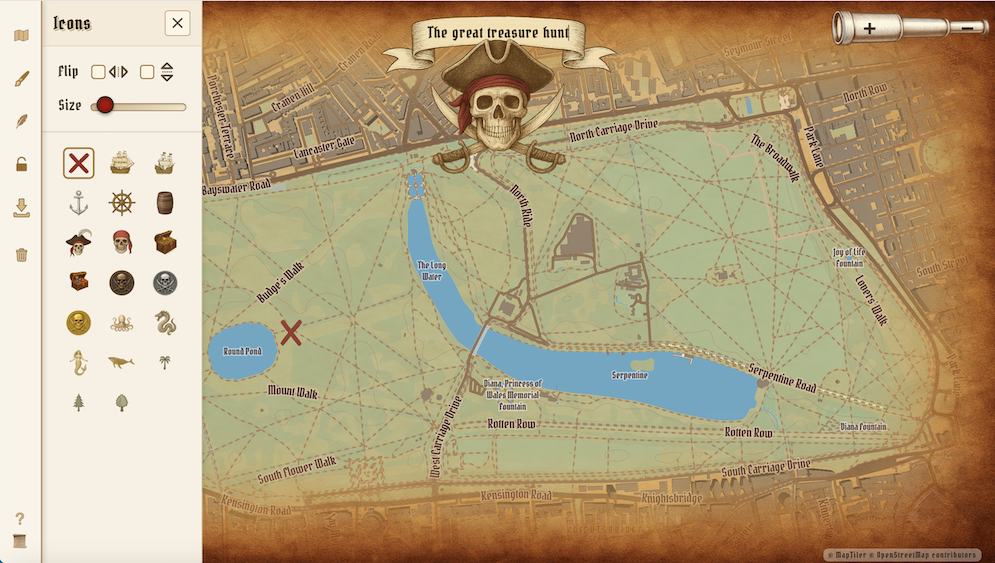 Image banner at the top of the map from Pathyn.com.
❌ Step 6: Add an X marks the spot
In the icons panel, click the red X icon, then click on the map to place it. Want to move it? Just click a new spot.
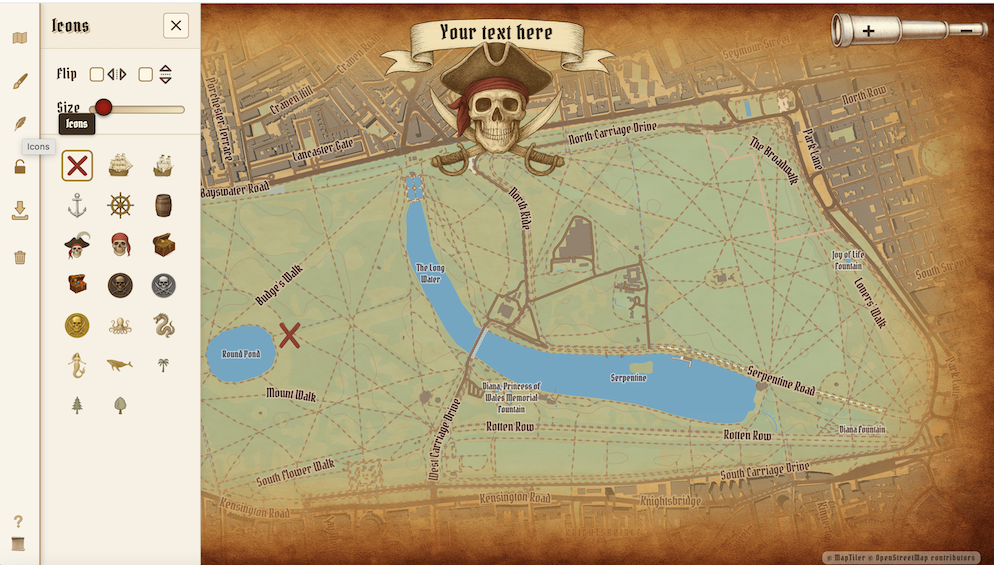 Sidebar with ‘X marks the spot’ highlighted.
🔒 Step 7: Lock the map
In the rail on the left, there is a lock button which can keep the map from moving or zooming while placing icons. Click it again to unlock the map and pan or zoom.
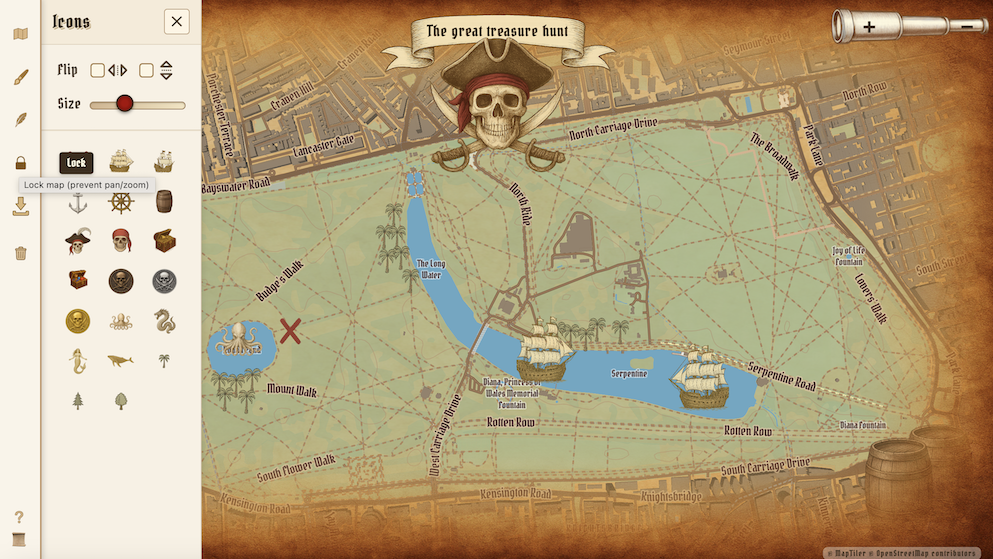 Freeze the map in place with a lock.
📏 Step 8: Resize Icons
Use the size slider to adjust the size of your icon before placing it. Slide left to shrink, right to enlarge. Here, I’ve slid it all the way to the right and added two barrel icons to the pirate map.
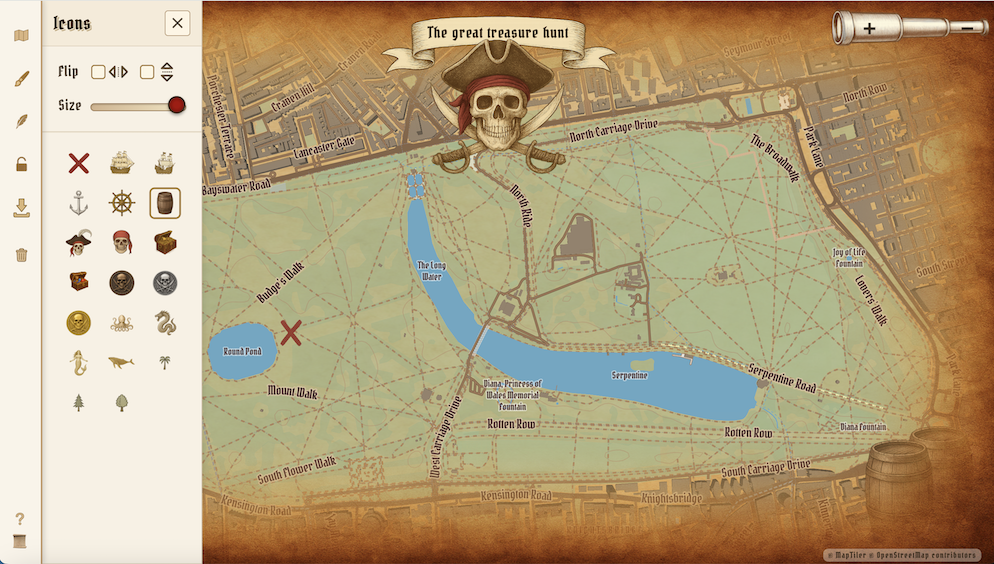
Icon size slider is on the left sidebar.
🦜 Step 9: Add Icons
Open the Icons panel, choose an icon, and click on the map to place it. You can add multiple icons of the same type. To switch, select a different icon.
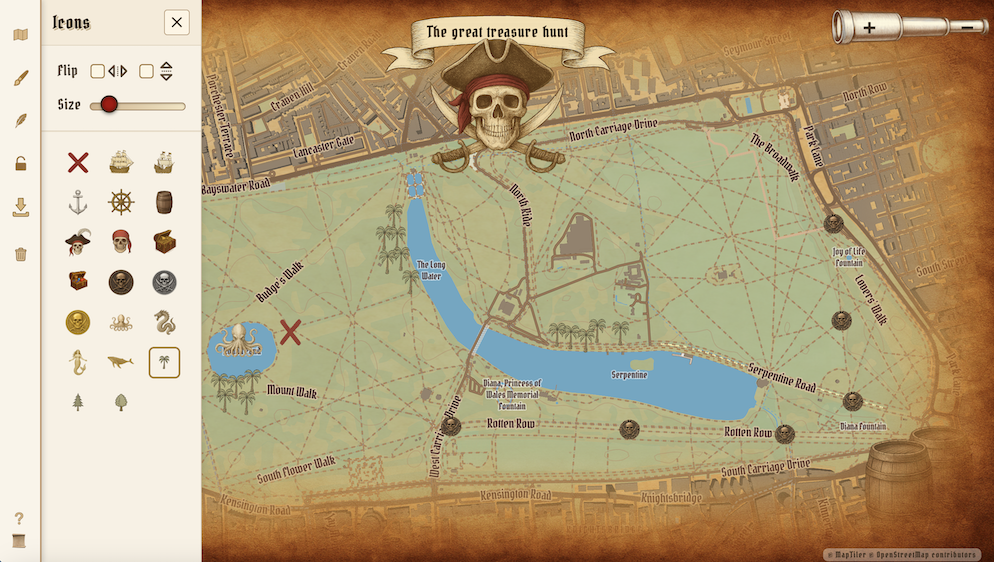 A kraken and multiple ‘bronze coin’ icons placed on the treasure map.
🔄 Step 10: Flip Icons (Optional)
Want to flip an icon? Check one of the flip boxes (horizontal or vertical), then click the icon on the map. I’ve flipped the ship on this treasure map. Be sure to uncheck the flip box when you’re done flipping to continue placing icons normally.
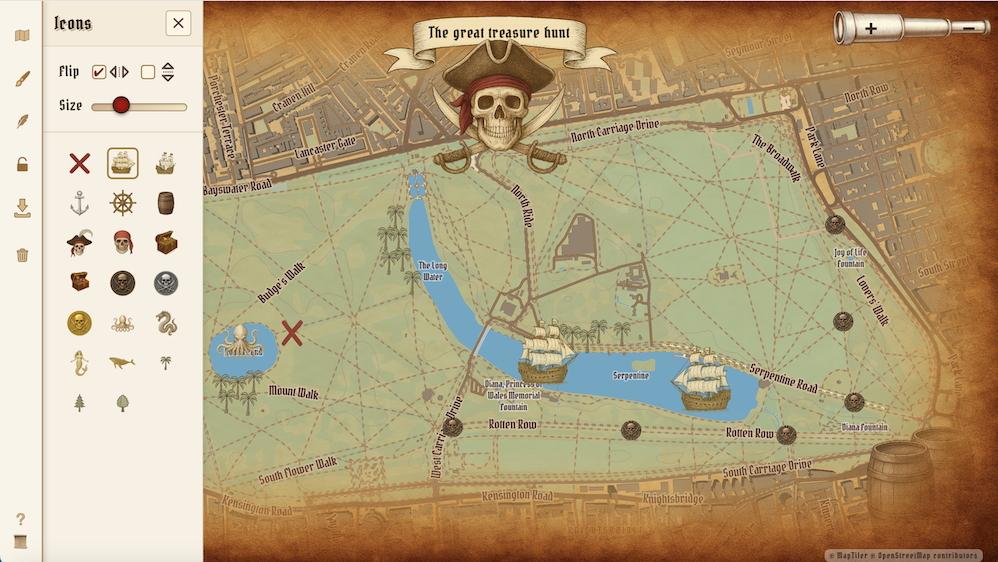
Checkboxes to flip icons horizontally or vertically.
🗑️ Step 11: Delete Icons
Right-click any placed icon to remove it from the map. Here, I deleted the bronze coins.
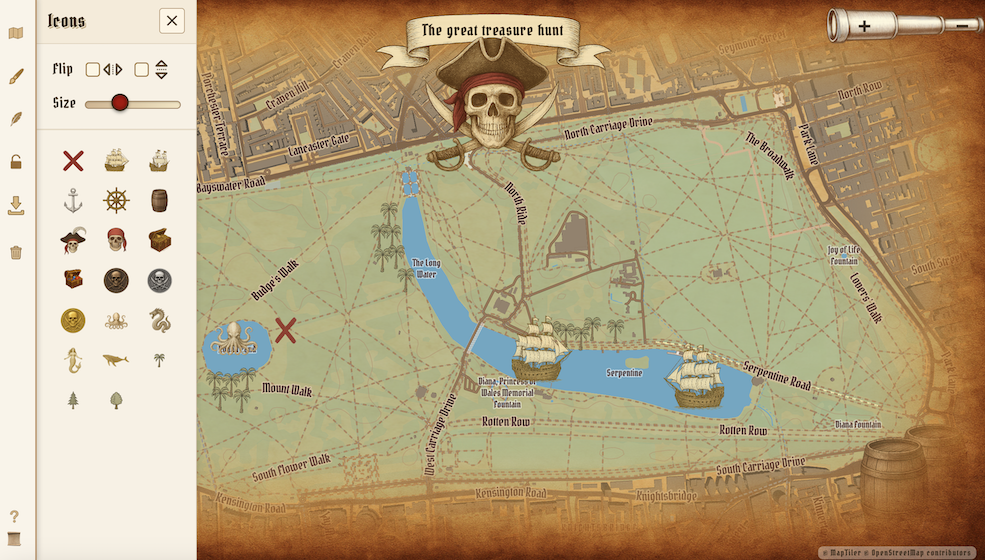
Checkboxes to flip icons horizontally or vertically.
⌇Step 12: Add a path
Open up the Tools panel. A path can be placed with the Draw Path button. Just click Draw Path and then click locations on the map. If you want a more rounded path, just zoom in and click in smaller segments (i.e., click a lot more times when zoomed in) to get your path more rounded. Press the esc key to stop the path, or just click the same Draw Path button again to stop the path.
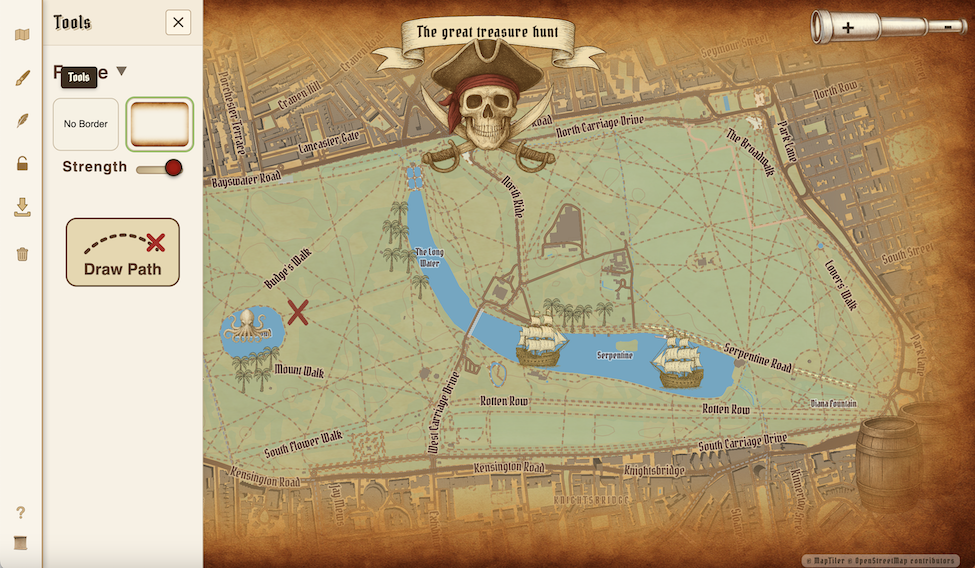
📥 Step 13: Download Your Map
Click the Download button to save your custom treasure map as an image. You can print it out for parties, scavenger hunts, or backyard adventures.
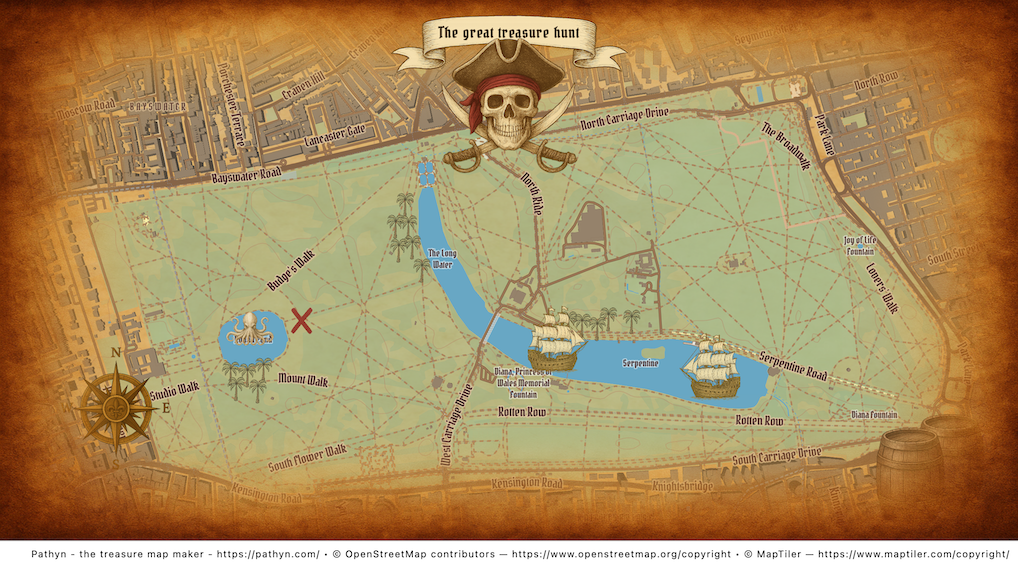
Downloaded example treasure map.
With just a few clicks, your ordinary street becomes the setting for an unforgettable quest. Whether it’s for a birthday, scavenger hunt, or weekend adventure, Pathyn makes it easy to turn real places into magical experiences. Start mapping your own corner of the world — and let the treasure hunt begin!
In my next post I’ll highlight reasons why you might want to create a treasure map with Pathyn.
